




A DTF order can only move as efficiently as the artwork that enters production. If your file is blurry, incorrectly sized, surrounded by an unwanted background, or still waiting for design changes, a rush order can lose time before printing even begins.
For DTF Print House orders, a reliable starting point is a high-resolution file prepared at the final print size, with at least 300 DPI and a transparent background when transparency is required. Clean edges, readable details, and correct dimensions matter just as much as the file name or upload step.
This guide focuses on the artwork side of the workflow. For the complete local ordering process, including same-day production, pickup, shipping, transfer formats, and Stafford planning, use our DTF printing in Stafford, TX guide.
What Are the Basic DTF File Requirements?
Before uploading artwork for DTF printing, check the file itself rather than assuming it is print-ready because it looks good on a phone or computer screen.
A practical DTF artwork checklist includes:
- Prepare raster artwork at at least 300 DPI at the final intended print size.
- Use a transparent background when you do not want a background printed around the design.
- Make sure the artwork is sized for the physical dimensions you actually want to print.
- Keep edges sharp and clean.
- Remove unwanted pixels, halos, glows, and unnecessary transparent space.
- Check that text and fine details remain readable at the final print size.
- Avoid blurry, pixelated, or artificially enlarged low-resolution artwork.
- Do not mirror the artwork before upload when the ordering workflow handles mirroring automatically.
For many DTF orders, a high-resolution transparent PNG is the simplest production-ready option. Some ordering paths may support additional file types, but the important requirement is that the uploaded artwork itself is properly prepared for printing.
Why 300 DPI at Final Print Size Matters
Resolution should be evaluated at the size the design will actually be printed.
A file can contain many pixels and still become unsuitable if it is enlarged far beyond the size for which it was created. The opposite is also true: a design that looks small on your screen may contain enough resolution for a clean physical print.
The useful question is not simply, “Is this file 300 DPI?” It is:
“Is this artwork at least 300 DPI at the final size I want printed?”
If you need a design to print at a specific width or height, confirm those dimensions before submitting the order. Enlarging weak artwork at the last minute does not create additional detail.
Use a Transparent Background When You Do Not Want It Printed
Transparency is one of the most common artwork-preparation issues in custom DTF orders.
If a white box, colored rectangle, or other visible background is included in the artwork, that background may become part of the printed design. Do not assume the upload system will automatically understand which portions you intended to remove.
Before ordering, inspect the artwork and confirm that only the elements you actually want printed remain visible.
Pay particular attention to:
- white boxes around logos,
- stray pixels outside the design,
- soft transparent glows,
- drop shadows that fade into transparency,
- rough background-removal edges, and
- unwanted empty space surrounding the artwork.
DTF Print House’s upload guidance makes the customer-side responsibility clear: the file should arrive clean and print-ready rather than relying on production to automatically repair low-resolution artwork or remove unwanted backgrounds.
Confirm the Final Print Size Before Uploading
Artwork preparation and transfer sizing should happen together.
If you know that a design needs to be printed at a specific physical size, prepare and review it with that size in mind before placing the order. This is especially important for logos, small text, fine outlines, and detailed graphics.
Before submitting the artwork, ask:
- What physical width should the transfer be?
- Does the design need a specific height as well?
- Is the aspect ratio correct?
- Will small text remain readable at that size?
- Do fine details still look clean when viewed at the intended dimensions?
If you already have one finished design and know the exact size you need, custom DTF transfers by size provide a direct ordering path once the artwork is ready.

Check Fine Details, Text, and Edges
DTF can reproduce detailed artwork, but the source file still determines what information is available to print.
Zoom in before uploading. Look around the outer edges of the design and inspect small text, thin lines, curves, and isolated details.
A print-ready file should not depend on the printer to guess whether an irregular edge, tiny dot, faint glow, or leftover background pixel belongs in the design.
If you are working from an editable vector file before exporting your final artwork, converting fonts to outlines or curves can also help prevent font-substitution problems when the file moves between systems.
Do Not Mirror the Artwork Before Uploading
Mirroring is part of many transfer-production workflows, which can lead customers to assume that they should flip the design themselves before ordering.
DTF Print House’s current artwork guidance states that customers should not mirror the image before upload when the production workflow handles that step automatically.
Submitting artwork already mirrored when the production process also mirrors it can create an incorrect final orientation, especially for text, numbers, and directional logos.
Why File Preparation Matters More for Same-Day Orders
A normal production schedule may leave more room to resolve an artwork problem. A same-day order has less room for uncertainty.
DTF Print House identifies 12 PM CT as the cutoff for eligible same-day production, pickup, or shipping in Stafford. That makes artwork preparation part of deadline planning rather than a separate design task.
If an unsuitable file has to be replaced or corrected, the order may not be ready to move directly into production.
For that reason, do not use the cutoff as the time to begin checking your artwork. Work backward from it.
For more context on the production-speed side of the workflow, review our same-day DTF printing guide.
Same-Day DTF Artwork Checklist for Stafford Orders
Before submitting a time-sensitive Stafford order, run through this checklist:
- Confirm the artwork is final. Do not submit a draft that may still require customer approval or design changes.
- Check the final print dimensions. Know the physical size you actually need.
- Verify resolution at print size. Raster artwork should be at least 300 DPI at the intended output dimensions.
- Inspect the background. Remove anything you do not want printed.
- Review edges and transparency. Look for halos, stray pixels, soft glows, or unwanted semi-transparent areas.
- Check text and small details. Make sure important information remains readable at final size.
- Do not pre-mirror the artwork. Submit it in its normal orientation.
- Confirm quantities. Know how many copies of each design you need.
- Choose the transfer format. Decide whether the job should use individual transfers or a gang sheet.
- Plan around the 12 PM CT cutoff. If same-day production matters, the artwork should be ready before the order reaches the deadline stage.
Individual Transfers or a Gang Sheet?
File preparation also depends on how the artwork will be ordered.
An individual transfer can be straightforward when you have one finished design, a known physical size, and a defined quantity.
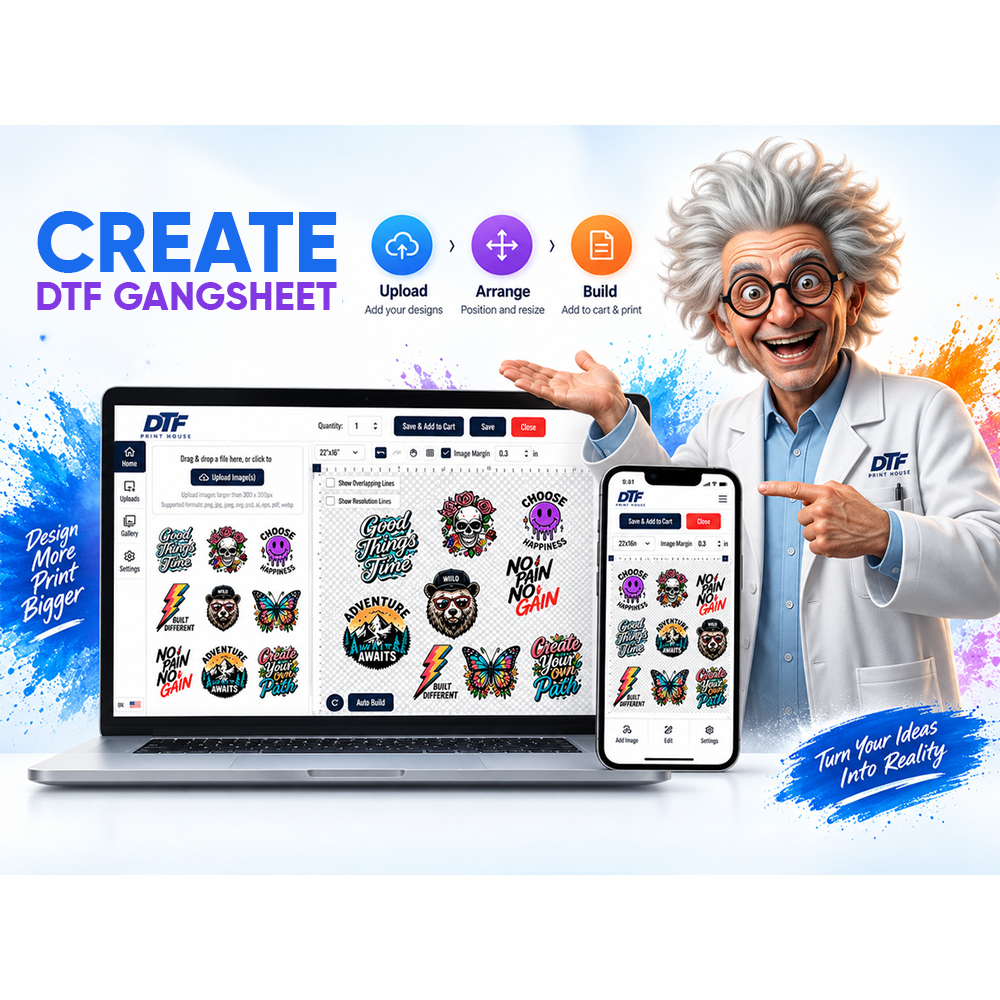
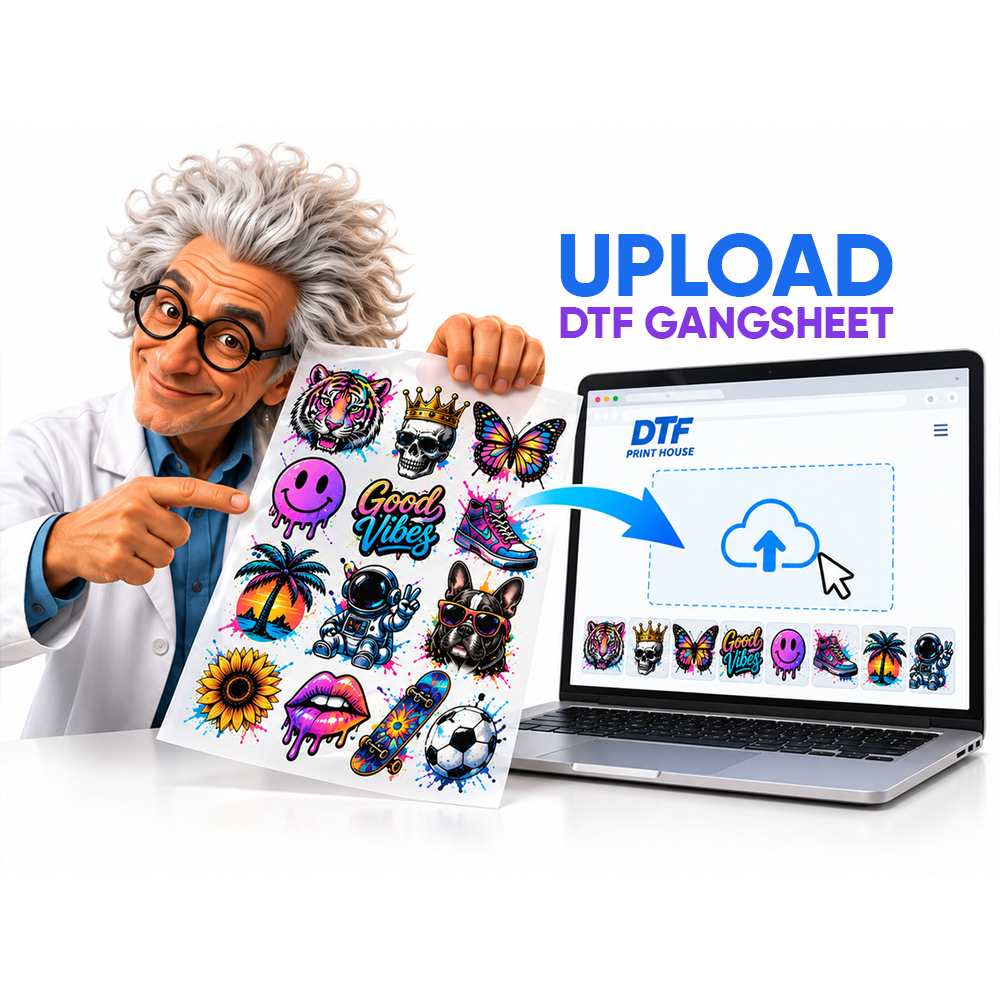
A gang sheet becomes relevant when several designs, repeated graphics, or multiple sizes need to be organized together on a larger sheet.
If you are still deciding how that format works, our DTF gang sheet guide explains the concept and how it fits into a multi-design production workflow.
The file requirement does not disappear when you choose a gang sheet. Every design placed on the sheet should still be clean, correctly sized, and high enough in resolution for the final printed dimensions.
Common DTF Artwork Problems to Fix Before Ordering
Low-Resolution Artwork
If a small image has been enlarged significantly, it may look soft or pixelated in print. Resaving the same weak image at a different DPI setting does not recreate missing detail.
An Unwanted White Background
If the white area is part of the artwork file, do not assume it will disappear automatically. Remove it before upload unless you intentionally want that area printed.
Semi-Transparent Glows and Soft Edges
Faded pixels, drop shadows, and soft transparent effects may not behave like a simple solid-edge graphic. Inspect them carefully before treating the file as production-ready.
The Wrong Physical Size
A high-resolution design can still create the wrong result if the requested dimensions are incorrect. Confirm the real print size rather than judging only from the screen preview.
Last-Minute Design Changes
Rush production works best when artwork decisions are already complete. Changing text, logos, colors, or layout near the production cutoff adds another decision point before the file can move forward.
What If Your Artwork Is Not Ready Yet?
If you are still creating the design rather than checking a finished production file, treat design creation and production preparation as two different tasks.
Finish the design first. Then evaluate resolution, transparency, dimensions, edges, text, and final output size.
Our existing guide on how to design DTF transfers covers the broader design workflow. This checklist is for the next stage: deciding whether the finished artwork is actually ready to enter production.
Frequently Asked Questions About DTF File Requirements
What is the best file setup for a DTF order?
A strong default is high-resolution artwork prepared at the final print size, with at least 300 DPI for raster artwork and a transparent background when you do not want a background printed.
Does my DTF artwork need a transparent background?
Use a transparent background when the area around the design should not be printed. If a visible white or colored background remains in the artwork, it may become part of the printed transfer.
Is 300 DPI required for DTF printing?
DTF Print House recommends artwork at least 300 DPI at the final print size for clean, detailed results. Resolution should be checked at the dimensions you actually intend to print.
Should I mirror my DTF design before uploading it?
No. DTF Print House’s current upload guidance says not to mirror the image because the production workflow handles mirroring automatically.
Can DTF Print House automatically fix a low-resolution file or remove my background?
The current artwork guidance states that files should be submitted print-ready and that backgrounds or low-resolution artwork are not automatically corrected for the customer.
Why can artwork problems affect a same-day order?
A same-day order needs to reach production with the important customer-side decisions already resolved. If the artwork must be replaced or corrected first, that creates an additional step before printing can begin.
Prepare the File Before the Deadline
The safest way to approach DTF file preparation is to separate design decisions from production decisions.
Finish the artwork. Confirm the physical size. Check the resolution. Remove unwanted backgrounds. Inspect the edges and transparency. Verify that text and small details remain clean. Then choose the order format that matches the job.
If the order is time-sensitive, complete those checks before the Stafford same-day cutoff becomes the limiting factor.
For the complete local workflow, return to our Stafford DTF printing guide. Once your file and dimensions are ready, you can move directly to custom DTF transfers by size for a straightforward individual-transfer order.