Creating a gang sheet in Canva is easier than most people think. You do not need expensive software to build a professional DTF print layout. This free tutorial walks you through every step from setup to export.
💡 Did you know? A gang sheet lets you print multiple designs on one film roll. This saves money by eliminating wasted material on every order.
Gang sheets are the smartest way to order DTF transfers. You fill every inch of the roll with your own designs. The result is a lower cost per print every single time.
If you prefer working in a different programyou can prefer Adobe Illisturator too. Both methods produce great results for DTF printing. Get in touch with us for further support!
The first step in any create gang sheet Canva workflow is setting up your workspace. You must use custom dimensions, not a pre-built template. Standard templates will not match DTF film roll sizes.
Open Canva and click "Create a design." Select "Custom size" at the bottom of the menu. Change the unit of measurement to inches before entering any numbers.
Most DTF film rolls are 22 inches wide. Set your width to 22 inches. Choose your height based on how many designs you have — 36 or 60 inches are common choices.
🔥 Canvas Size Cheat Sheet 22" × 36" = small order · 22" × 60" = medium order · 22" × 120" = bulk order. Always set units to inches first.
Getting your dimensions right from the start is critical. Incorrect sizing causes designs to print distorted or the wrong scale. Take two minutes here to save a costly reprint later.
Step-by-Step Canva Tutorial
This Canva gang sheet tutorial covers everything from uploading files to placing designs. Follow each step in order for the best result. Do not skip the resolution check at the start.
Step 1 — Upload High-Resolution Art
Always use PNG files with a transparent background. Your files must be at least 300 DPI for sharp prints. Low-resolution images will look blurry on finished transfers.
Drag your files into the Uploads tab on the left sidebar. Avoid JPEG files because they lose quality when enlarged. If your design has a white background, use Canva Pro's Background Remover tool to clean it up.
Step 2 — Place Your Largest Designs First
Start by dragging your biggest designs onto the canvas. Place them along one side or in the center of the layout. Large designs anchor your sheet and make it easier to fill gaps.
Next, add smaller items like neck labels or sleeve prints around them. Rotate designs 90 degrees when it helps them fit into tight spaces. Every saved inch of film reduces your cost per transfer.
Step 3 — Use Alignment and Position Tools
Open the Position panel in the top toolbar to access alignment options. Use Align tools to space designs evenly across your canvas. Consistent spacing makes hand-cutting much faster after your order arrives.
Select multiple designs and group them together to move them as one unit. Canva's Tidy Up feature auto-organizes rows of repeating logos. This keeps your layout clean and professional without manual measuring.
Step 4 — Check Your Safe Zone and Spacing
Leave at least a 0.5-inch gap between every design on your sheet. This gap gives you a clean cut line between each transfer. Designs placed too close together are difficult to separate after pressing.
Keep all artwork at least 0.25 inches away from the outer edge of the canvas. Printer rollers can clip designs that are too close to the edge. A small margin of safety protects your entire roll from being wasted.
💡 Pro Tip: Group all your designs and zoom out to review the full layout before exporting. Spotting gaps early saves you from reordering a corrected sheet.
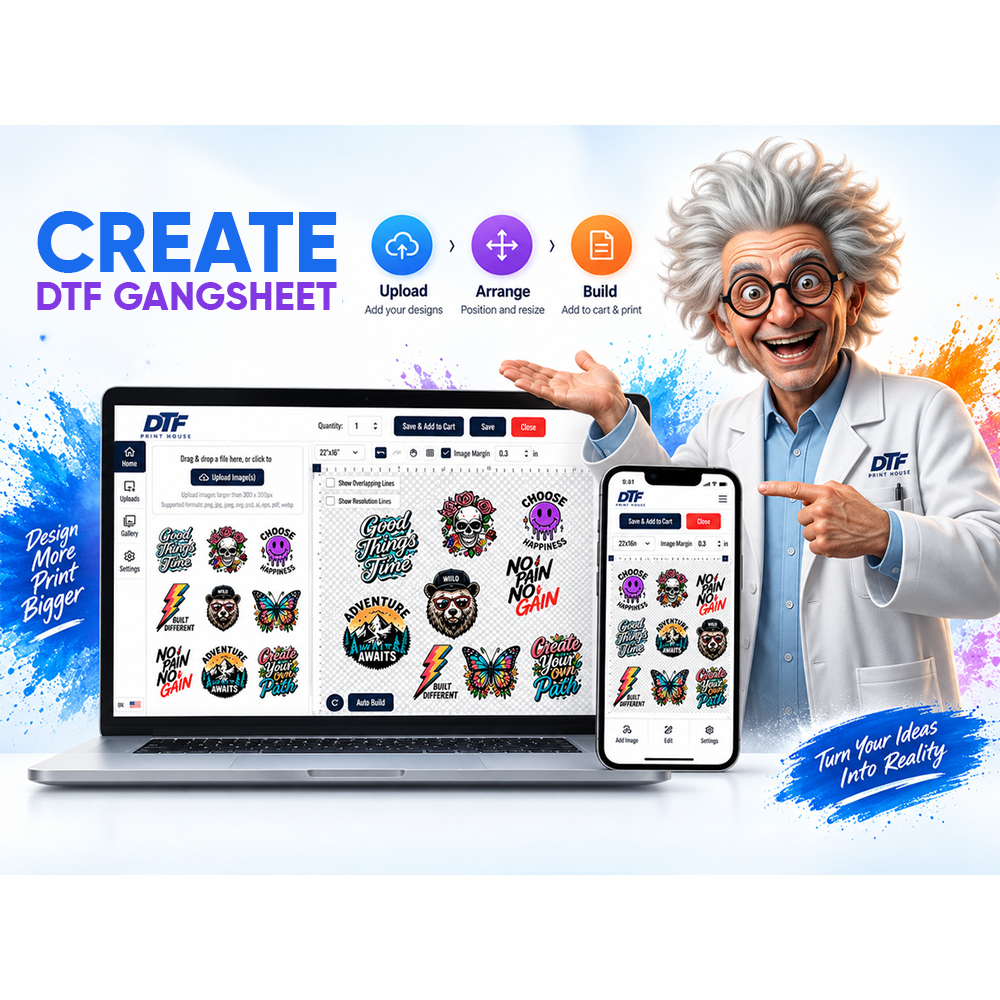
When your layout looks good, you are ready to export. Use our DTF gang sheet builder if you want an even faster way to build and submit your layout online.
Exporting from Canva
Exporting your Canva DTF file correctly is just as important as the design itself. A bad export can undo all your careful layout work. Always follow these exact settings for the best print quality.
Click the Share button in the top right corner of Canva. Select Download from the dropdown menu. Choose PNG as your file type to preserve transparency in your designs.
Do not use the standard quality setting. Check the box for "Transparent background" if your designs have no background fill. This ensures clean edges on every transfer after pressing.
Canva works in the RGB color space, which is designed for screens. DTF printers use CMYK inks for physical output. Avoid neon or highly saturated colors to minimize any shift between your screen and the printed result.
For critical brand colors, use exact hex codes to stay consistent across orders. If your colors must be perfect, export your file and run a CMYK conversion in a secondary tool before submitting. A quick test print is always worth it for brand-sensitive work.
You can create a gang sheet in Canva using the completely free version. The free plan gives you custom dimensions, PNG export, and all alignment tools. Most DTF designers use nothing more than these features.
Canva Pro adds useful tools that can speed up your workflow. The Background Remover is the most valuable Pro feature for DTF work. It removes white or solid backgrounds from logos in seconds without any manual editing.
Pro also unlocks premium stock elements and a brand kit for saving your colors and fonts. These features are helpful for professional decorators managing multiple clients. However, they are not required to produce a high-quality gang sheet.
🔥 Free vs Pro — Quick Verdict Free Canva handles 90% of DTF gang sheet work perfectly. Upgrade to Pro only if you regularly need Background Remover or manage multiple brand accounts.
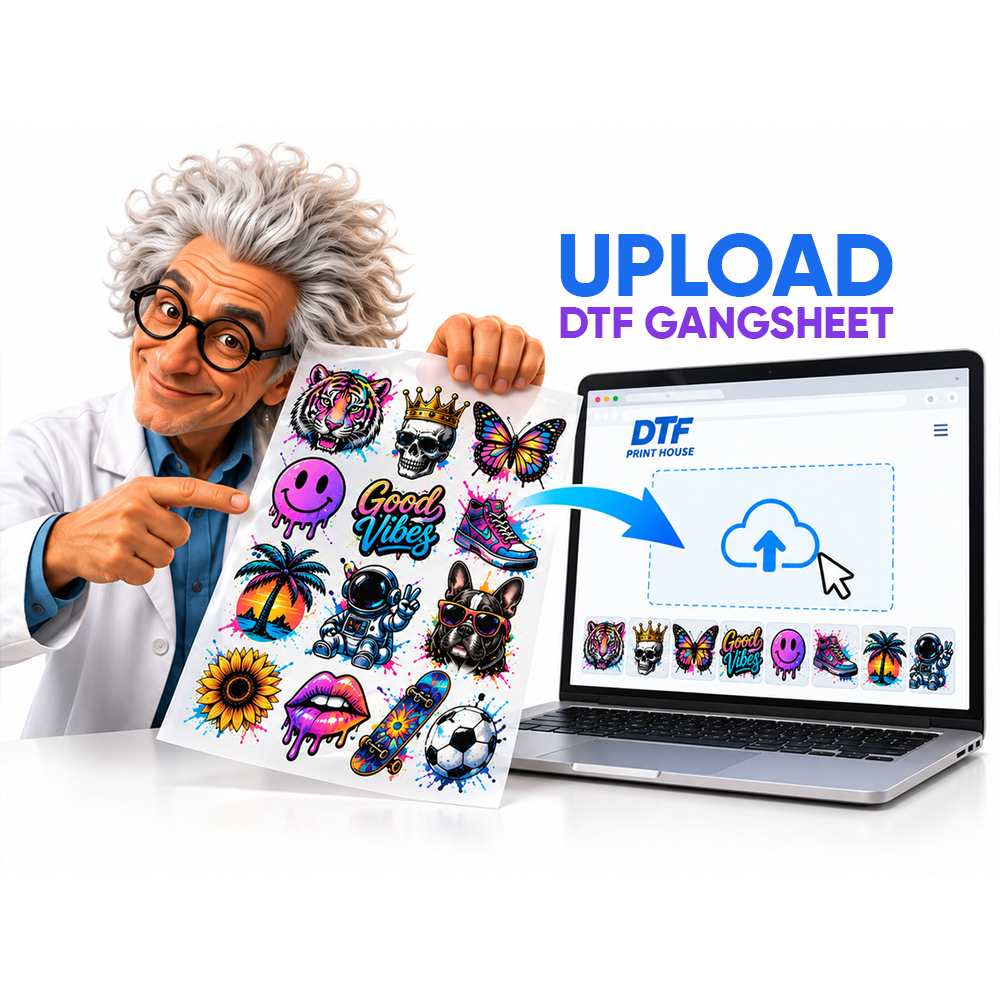
Ready to submit your file? You can create your gang sheet directly on our site and upload your Canva export in seconds.
FAQ
How to make gang sheet in Canva?
Open Canva and select Custom Size. Set width to 22 inches and height to your preferred length. Upload PNG files at 300 DPI. Place designs with 0.5-inch gaps between each one. Export as PNG with transparent background enabled.
Is Canva free good enough for DTF?
Yes, Canva free is good enough for most DTF gang sheets. You get custom dimensions, PNG export, and alignment tools at no cost. Upgrade to Pro only if you need the Background Remover feature regularly.
How to export from Canva for DTF printing?
Click Share, then Download in the top right corner of Canva. Select PNG as your file type. Check the transparent background option before downloading. Submit the exported file directly to your DTF printer for best results.